Showing posts with label java. Show all posts

Friday, 12 August 2011

SubEthaSMTP: Store email as files before sending out

I have written a simple handler for SubEthaSMTP that will save emails to specific folders before sending them out. First the main function to setup stuff (SMTPServer.java)

You can download it from here. (Note: There are three source class in there, with their Class Name properly highlighted).

What it does is to start an SMTP server (standard SMTP Port) in the workstation/server you are running it on.

You will need to configure SMTPMessageHandlerFactory to set the appropriate smtp host, smtp port, smtp user and smtp password to send the email to.

Whenever a mail is received, it will write the contents of the mail in folder: outbox/{fromemailaddr}/{date}/{time}

It will work for normal mail (HTML/plain) and mail with attachments, but not message/rfc822 type.

Also, because I am not able to read BCC headers from the mail received via SMTP, instead of processing the TO, CC, and BCC in the mail content, I will send out the mail to everyone separately, putting them in the TO field for each email sent.

Please help to test out and comment accordingly. Thanks.

Sunday, 24 July 2011

Apache Camel: Email notification when files are placed in FTP folder

I love getting automated notification when events occur rather than having to perform manual checking. As an example is, instead of having to login to FTP and check whether files are uploaded to a particular FTP folder, it will indeed be much more elegant if an email notification can be sent to me automatically to inform me about that fact.


For this article, you can use the Apache Camel project created from my previous blog article. Also, let's enable Apache Camel logging so we can see debug output for ease of understanding what's going on. Verify if you already have log4j.properties in your project (should be in Other Sources -> src/main/resources -> <default package> folder under your project. If it is there, you might want to skip to the FTP and Email section.
To do so, first, ensure that you add dependency for slf4j-log4j12 for the appropriate version of slf4j you have (mine is 1.6.1). You can follow the instructions in my previous article to add the dependency (if you are like me, using NetBeans 7 and Maven).


Next you need to click on the Files tab in your NetBeans project, go to your project and expand to src\main, right-click and select New -> Folder. Create a folder named 'resources' (without quotes, of course).
After that, right-click on the resources folder you have just created, and select New -> Properties File. When the New Properties File dialog appear, enter log4j as the filename. The Folder should be src\main\resources (if you indeed right-clicked on the resources folder). As per screenshot below:


Enter following info into your log4j.properties file:

log4j.rootLogger=TRACE, out

log4j.logger.org.apache.camel=DEBUG

log4j.appender.out=org.apache.log4j.ConsoleAppender
log4j.appender.out.layout=org.apache.log4j.PatternLayout
log4j.appender.out.layout.ConversionPattern=[%30.30t] %-30.30c{1} %-5p %m%n
The file should be accessible from Projects tab in the following navigation under your Project folder: Other Sources -> src/main/resources -> <default package>


Next, add dependencies for both camel-mail and camel-ftp.When done, amend your routing code to:


        context.addRoutes(new RouteBuilder() {
            public void configure() {
                from("ftp://ftp.myftp.com/test?username=myuser&password=mypass&noop=true")
                    .setBody().simple("Hi, new file uploaded to ftp. Name: ${header.CamelFileName}")
                    .setHeader("subject").simple("Received filename: ${header.CamelFileName}")
                    .to("smtps://smtp.gmail.com?username=development.rants@gmail.com&password=******");
            }
        });

The above example (fictitious account info), will check the test folder in ftp.myftp.com for user: myuser. When found, it will send an email to my gmail account development.rants@gmail.com. The sender is of the same email account. An email will be sent for every file found in the ftp account, so for testing purposes, please ensure that you do not have too many files in this folder.


You may also want to modify the call to Thread.sleep in App.java to a longer time, e.g. 60 seconds, as below:


        Thread.sleep(60000);


Next, build and run the project, and voila! You will start receiving emails when files are uploaded into the ftp folder being watched.


For this article, notice that I am using noop=true parameter for the ftp url. That will means the file will be left in that folder as it is. This is useful if you are running the program a few times and wants to be able to test without needing to re-upload files to the ftp folder.


For more options you may want to refer to the Camel FTP component documentation here.


Enjoy!

Wednesday, 6 July 2011

Using NetBeans 7.0 to create an Apache Camel project without Spring dependency

NOTE: This article was rewritten to fix the issue of unable to create a new project based on the apache camel quickstart archetype.

Despite the conveniences offered by the Spring Framework, there are times I would rather live without it, especially for simple applications that I need to keep as lightweight as possible. To do this, the steps are below:

1) Create a new Project in NetBeans 7.0, and choose Maven -> Java Application, and click Next.

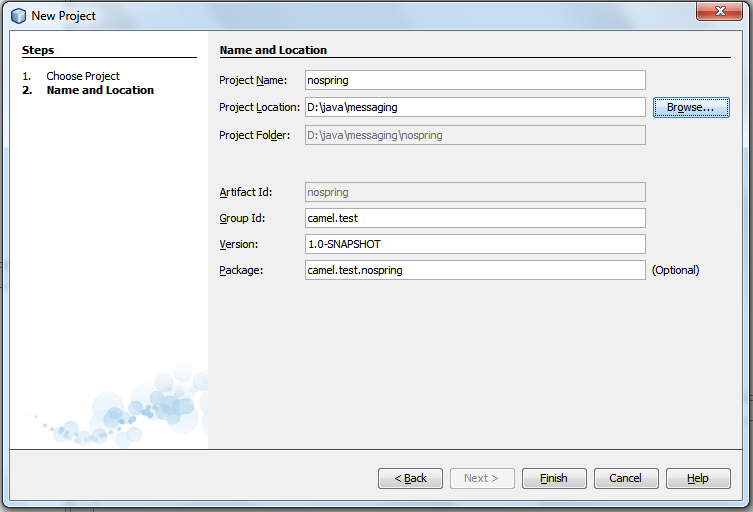
2) In Step 2 of Project Wizard, enter your project name, and amend the other settings such as Project Location, Group Id, as you deemed fit.

Once done, click Finish, and wait for the Project setup to be completed.

3) Expand your Project from the Project Tab, right-click on Dependencies folder  and select Add Dependency...


4) In the Add Dependency dialog box, enter camel-core in the Query textbox under the Search tab. Once the Search Results appear, expand org.apache.camel: camel-core folder and click on the version you require, or the latest version available (currently latest is version 2.8.0) [bundle]. Central or Local should not matter, as you should only have Local if you have downloaded it before (either directly in your project or indirectly in other projects with camel-core dependency).


     Click on the Add button.

5) Now expand the Source Packages in your project and you should be able to find App.java. Modify the main class to the code below:

    public static void main( String[] args ) throws Exception
    {
        CamelContext context = new DefaultCamelContext();

        // add our route to the CamelContext
        context.addRoutes(new RouteBuilder() {
            public void configure() {
                from("file:src/data?noop=true").
                    choice().
                        when(xpath("/person/city = 'London'")).to("file:target/messages/uk").
                        otherwise().to("file:target/messages/others");
            }
        });

        // start the route and let it do its work
        System.out.println("Starting");
        context.start();
        Thread.sleep(20000);
        System.out.println("Done");
        // stop the CamelContext
        context.stop();
    }

    You will need to add the necessary dependencies.

6) You can now run the application, which will read any files in your src/data folder, and parse the xml, and move the file to either the target/messages/uk or target/messages/others folder depending on whether the person -> city node contains the value 'London' or not.

    If you followed my previous blog entry 'Using NetBeans 7.0 to create a new project using Apache Camel', you should have sample message1.xml and message2.xml under your src/data folder, which you can use for testing purposes.

    
All folders here are relative to your project folder. Until my next blog, Good Luck and Good Bye!

Friday, 1 July 2011

Apache Camel

One particularly interesting open-source project that caught my eyes is Apache Camel. It is an insanely simple and powerful integration framework. An excerpt of the intro from their website:
Apache Camel is a powerful open source integration framework based on known Enterprise Integration Patterns with powerful Bean Integration.
As I do a lot of coding in Java, and my company is mainly developing a PHP-based Content Management System, I am very keen to look for ways to provide a seamless integration and simplify PHP development by allowing most scheduled and batch jobs to be run via Java.

Using Apache Camel, I can easily fetch a file from a folder, and send it via email to a specific destination. It is not to say that PHP cannot do this, but using Java, I can easily allow 10 PHP web-applications to share the same Java engine. The advantage of this is, besides email, sending of SMS, XMPP message can be transparent to PHP as well, thus less config needed, as most of the one-time config can be centralized in the Java backend.

Apache Camel also allows you to easily communicate between servers by leveraging on JMS or sockets, so if you have hundreds of PHP applications strewn across 10 servers, you can have a simple Apache Camel app installed in all 10 servers that will just watch for existence of a file and dump it to a JMS queue, available for pickup by another set of servers that will then send out the Emails or SMS.

Sounds interesting? Continue following my blog as I will add new articles that slowly introduce a few great ways on how Apache Camel can be used. 

Saturday, 25 June 2011

The paths I have taken in Software Development

I first started programming in Apple Basic, before later moving on to DOS environment. I was never a fan of QuickBasic, but I loved Turbo Basic. Next I took a stab on Turbo Pascal, some Assembly language.

During my university years, I started doing web programming and a lot of C++ programming. I used to love Microsoft COM a lot, and I loved DirectX 3. The reference counting stuff is so interesting and at that time I thought that's the greatest gift anyone can bring to the Software Development world.

During my work environment, I started using Java. Initially I hated it so much as it is so slow, we even needed a third-party Symantec JIT to make it run at an acceptable pace. Along came Java 1.2, which makes more sense, and the last piece of puzzle that convinced me to the power of Java is when I was involved with the Java back-end team where they were able to run the same piece of software in HPUX, Solaris and Windows. It wasn't a bed of roses, there are thorns too, but compared to what the C++ team had to do for the cross-platform batch processing code to run across different platforms, it was far more elegant.

So I became an avid Java fan, even until today's Java 6, I am not that convinced that Java UI can make it big, I love doing back-end processing using Java. It is so powerful and expressive enough that many things that seem impossible or complicated in other languages are so beautiful in Java. You can embed a Javascript engine with little effort if you need to, you can have access of many high-quality networking components (think Netty, Mina, Aync Http Client), it is a beautiful environment to work with for systems integration.

In fact, in one of my favourite project, I was able to develop completely on Windows XP 32-bit, and the code was deployed to Solaris 64-bit with no issues at all, not even the need to re-compile! It was a transaction proxy that handles at least 20k transactions a day, and the automated garbage collection is so helpful to make it such a stable system. Touch wood, the system has been running for 3 years continuously without needing a single application or system restart! It really cemented my confidence in Java. It might not be a perfect language, but at least for some purposes, it is The Language.